Reports
From the Consumption screen, it is possible to generate detailed consumption reports with information down to the resource level. To do this, it is necessary to define the search filters and select the desired period.
The chosen period must be a maximum of 31 days. If it exceeds this limit, the report generation will be disabled.
Tip: Use the services filter to bring the resource column. As more services are selected in the filter the greater the number of rows will be, often making report generation unfeasible due to the limit of 100,000 rows.

After defining the filters, click on the report generation icon, located in the upper right corner. This will allow you to proceed with the report generation request.
Report
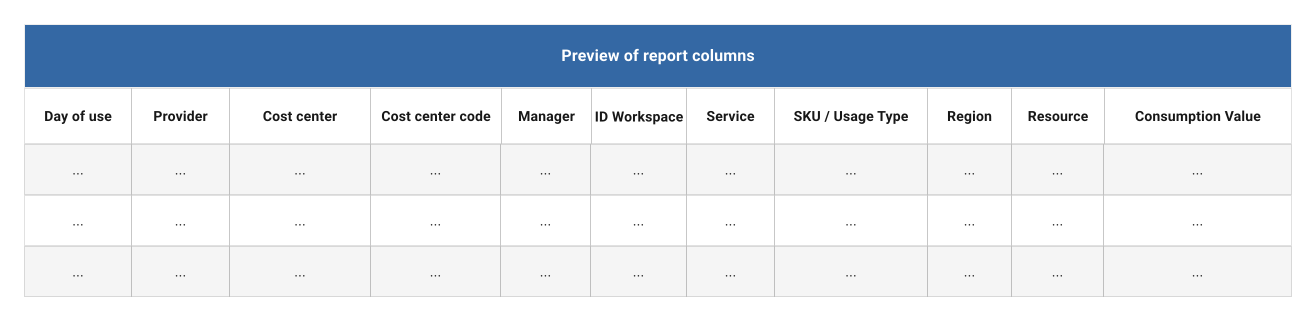
The spreadsheet structure is customizable, allowing the inclusion or exclusion of columns as needed. However, the columns "Usage Day", "Provider" and "Consumption Value" are mandatory and cannot be removed.
-
Period → Start and end date of the report, which delimit the records included in the spreadsheet.
-
Usage Day → Date on which the resource was effectively used.
-
Provider → Name of the service provider.
-
Cost Center → Name of the Cost Center.
-
Cost Center Code → Identifier of the Cost Center.
-
Manager → Person responsible for the Cost Center.
-
Workspace ID → Identifier of the Workspace.
-
Region → Region where the resource is allocated.
-
Service → Name of the Service.
-
SKU/Usage Type → SKU of the service.
-
Resource → Name of the resource.
-
Consumption Value BRL → Usage cost in Brazilian Real.
Errors
The maximum allowed limit is 100,000 rows. If this limit is exceeded, adjust the filters to reduce the number of rows.
Erro
The report exceeded the limit of 100,000 lines. Adjust the filters to reduce the number of results.
Important: if there is already a report available for download, with the same filter settings selected and not expired, it will not be possible to request it again. To download the existing report, simply access Reports.
Erro
A report with these filter options is already available. A button to redirect you to visualize the report will be available.
File format: The report is made available in CSV format. Ppen the CSV with softwares like Excel, Google Sheets, or data analysis tools like Pandas.
Reports
The Download Listing displays the history of report processing ordered from the most recent request to the oldest and allows downloading reports that are in the "Finished" status.
Columns
-
Responsible → User who requested the report.
-
File → Spreadsheet name / Date and time of the request.
-
Period → Start and end date of the report.
-
Status → Current condition of the request.
-
Expiration → Date and time of the report's expiration.
-
Action → Button to download the spreadsheet. It is enabled only when the spreadsheet status is "Finished".
Status
-
Finished - Available for download within 24 hours.
-
Processing - Generating spreadsheet.
-
Expired - Exceeded the 24-hour deadline.
Opening the report file
Google Sheets
-
Create a new file:
- Open a new file on Google Sheets.
-
Set language to english:
- Go to File on the upper menu, select Configurations and in General choose United States as your locale.
Important
This procedure must be done before importing the spreadsheet created by the platform.
-
Import the file:
- On the upper menu choose Import and select the file upload option.
-
Import configurations:
- On the Import local option - substitute the spreadsheet.
- Set the separator type as comma.
- Uncheck the option to convert text to numbers, dates and formulas to guarantee data precision.
-
Format consumption data:
- After importing, select the consumption column.
- Go to the format option on the upper menu, choose the option Number > Format of personalized number.
- Insert the format ###,##0.00 and click apply. This will make sure the data is correctly displayed.
Microsoft Excel
-
Create a new file:
- Open a new file on Excel
-
Import the file:
- On the upper menu choose Import and select the newly generated CSV file to import the report.
-
Import configurations:
-
Step 1:
- Select Delimiter - Characters such as commas or tabs separate each field.
- In File origin choose Unicode (UTF-8) and click in next.
-
Step 2:
- Check only the comma option in delimiters.
- Choose the text qualifier as double quotes (") and click in next.
-
Step 3:
- Select text and click in Advanced.
- Configure the decimal separator as dot (.) and thousands separator as comma (,).
- This will make sure that the data is shown in correct form on your spreadsheet.
-